Before starting, you need all of this: A working Domoticz server, accessible from the outside; The app “Pilot: Home Automation Control” has to be installed.
A huge thank you to the YouTube channel “Vlogmoticz Home Automation” for making a video tutorial. For those more familiar with text tutorials, please follow the steps below.
This tutorial is made for the Domoticz system. It will show you how to get your smartphone location, and trigger an event based on that. Before starting, you need all of this:
A working Domoticz server, accessible from the outside;
The app “Pilot: Home Automation Control” has to be installed on your iPhone, and already connected to your Domoticz installation;
The full version of the app is required to activate the location service.
Setting up your Domoticz server
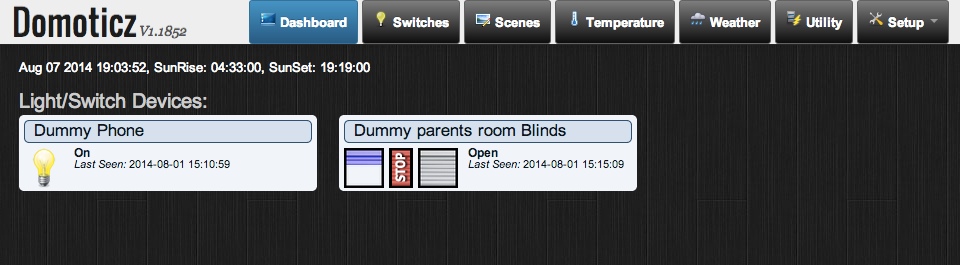
Go to your Domoticz control panel ;
Domoticz homepage
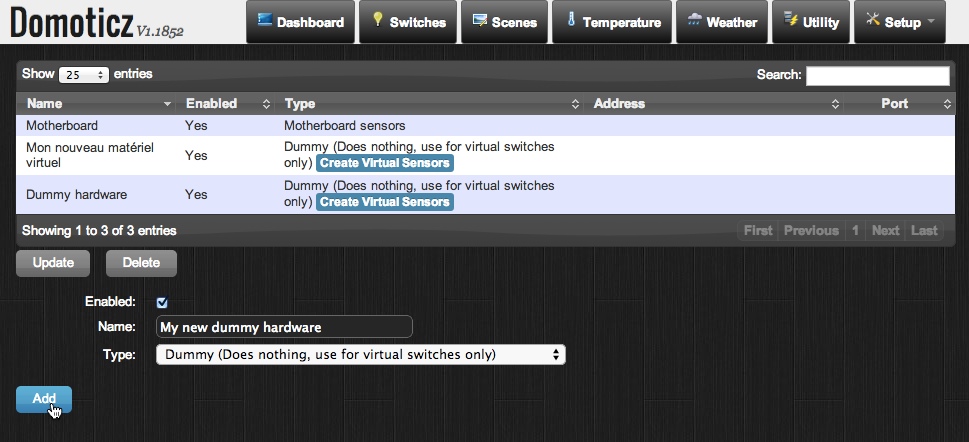
Go to the page “Setup > Hardware”;
Create a new dummy hardware, give it a name and the “Dummy” type. Click on “Add” to continue;
Domoticz hardware
Once the dummy hardware created, go to the “Switches” page;
Domoticz navigation menu
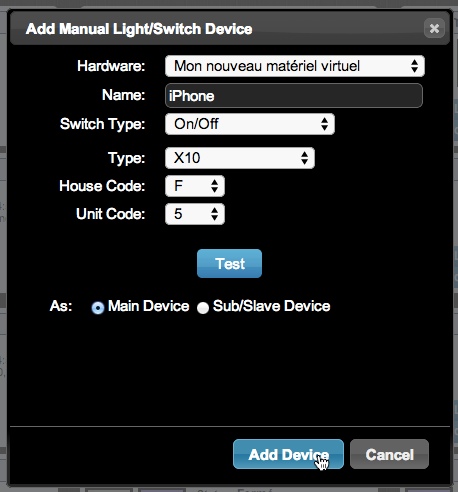
Click on “Manual Light/Switch”, and complete the following:
Hardware : select the hardware created on step 3;
Name : give it the name you want. For example: “My iPhone”;
Switch Type : “On/Off” ;
Type : type doesn’t matter, you can just leave it by default “X10”;
House Code : give it a random letter;
Unit Code : give it a random number; Be careful: for those using other X10 switches, please make sure not to use already registered house/unit codes;
As : “Main Device” ;
To finish, click on “Add Device” to confirm your dummy switch creation;
Domoticz – new dummy switch
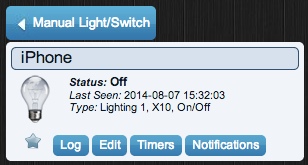
If everything is correctly setup, you should see your newly created switch appear on the switches page;
Domoticz dummy switch
And that is all for your Domoticz server! Now it is time to setup your Pilot app!
Setting up “Pilot: Home Automation Control”
Launch your “Pilot: Home Automation Control” app;
Go to “Settings > Location services”;
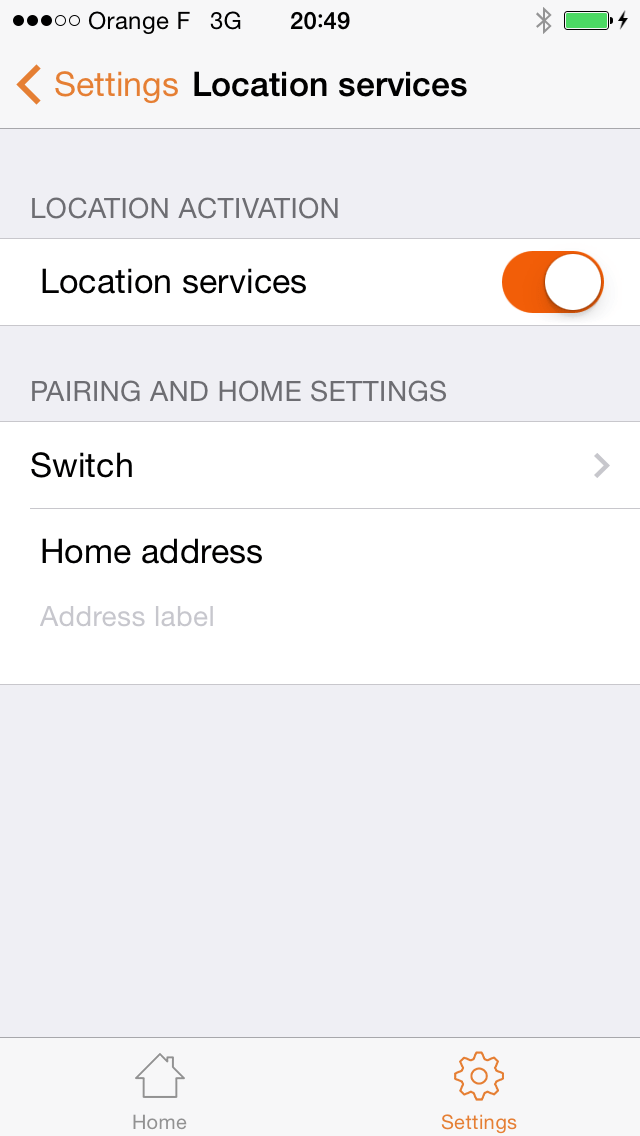
Activate the location services;
Pilot: location services activated
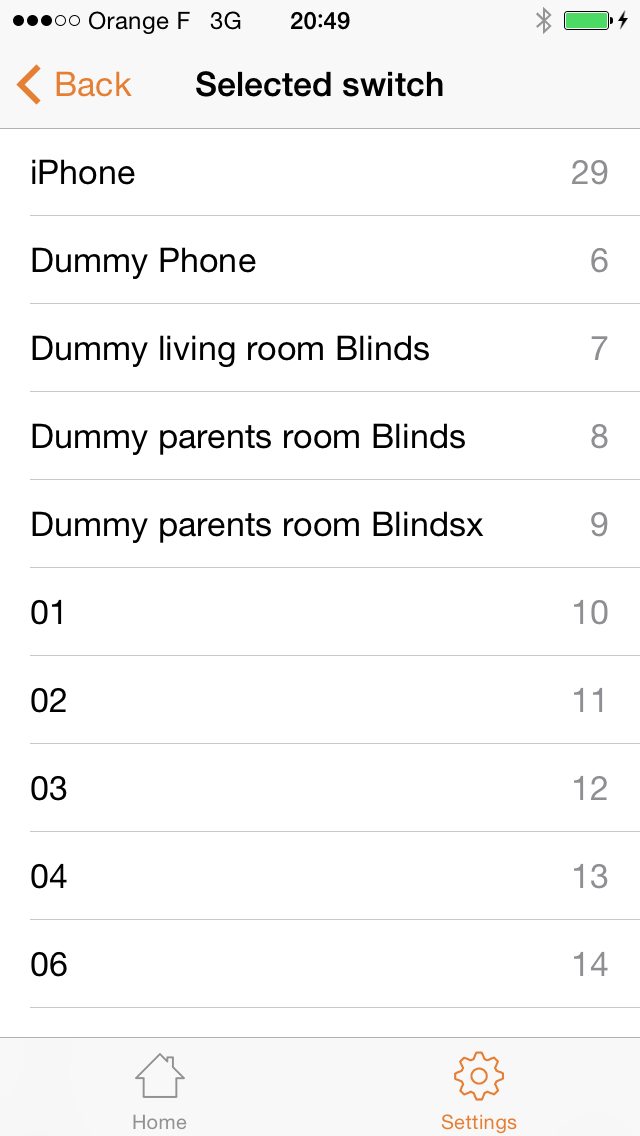
Tap on “Switch”, and select the dummy switch your created just before in your Domoticz server;
Pilot: selecting a switch
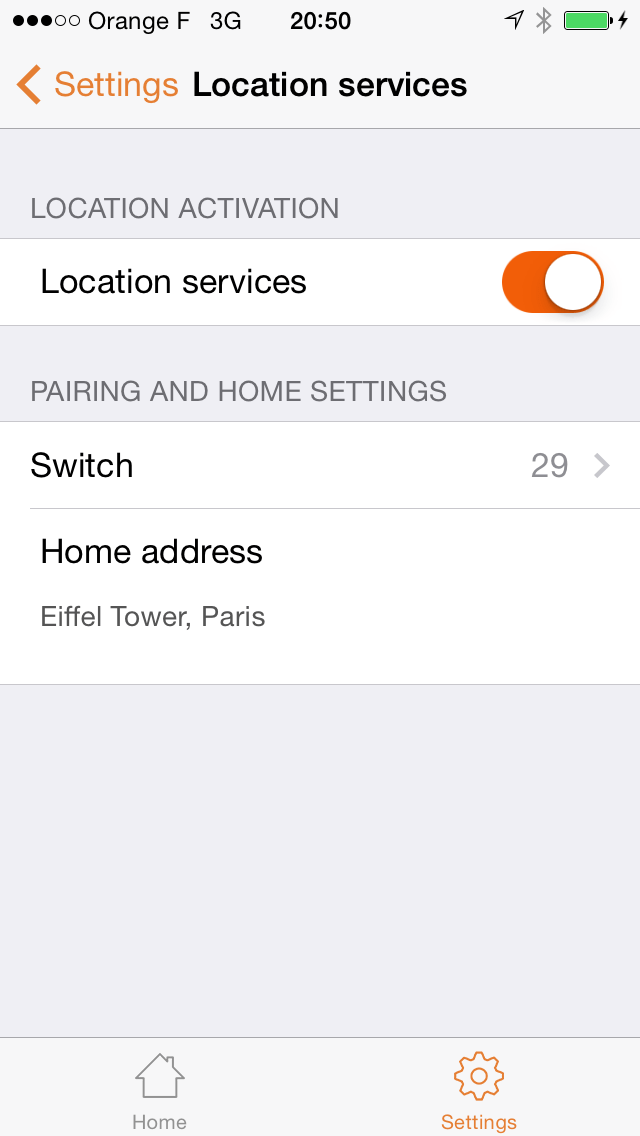
After selecting the switch, you will get back to the previous screen. All you have to do is entering your home address;
Pilot: location services correctly setup
And there you go! Your Domoticz server and your app are now fully setup. It is now time to create our first event. It will trigger whatever action you want when your smartphone gets or leave home.
Creating a new event based on your smartphone location
In this tutorial, I will cover a very simple event, that will do the following:
Send an email when your smartphone gets home;
Send an email when your smartphone leaves home.
With this very simple example, you should be good to create your own events.
Go to your Domoticz control panel;
Go to the page “Setup > More Options > Events”;
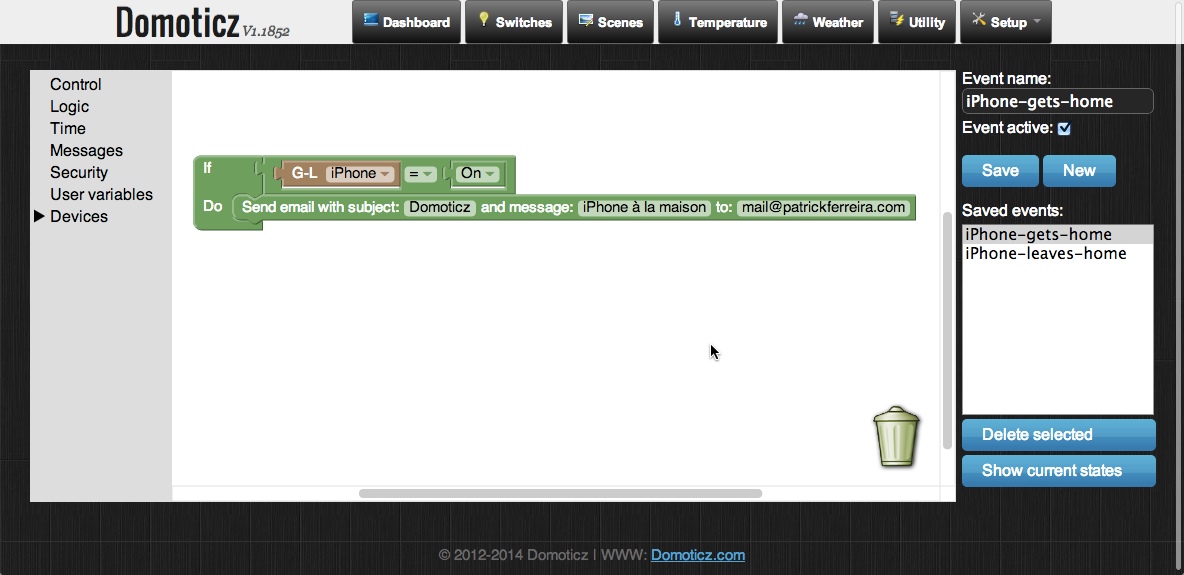
Create the first event, named “iPhone-gets-home”:
Create the puzzle;
Event name : “iPhone-gets-home”;
Check “Event active”;
Click on “Save”;
Domoticz events – iPhone gets home
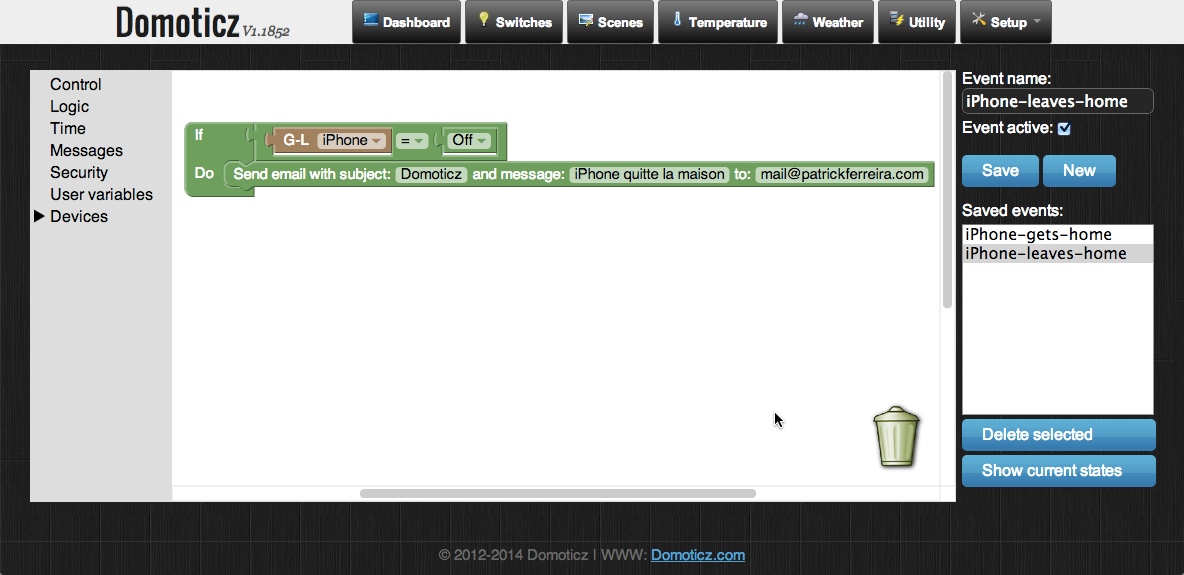
Create the second event, named “iPhone-leaves-home”:
Click on “New”, then create the new puzzle;
Event name : “iPhone-leaves-home” ;
Check “Event active”;
Click on “Save”.
Domoticz events – iPhone leaves home
And we are done! Your two events are now created and activated, and will send an email whenver your iPhone gets and leaves home!
Let’s sum up
In this tutorial, I did the following:
Create a dummy switch in my Domoticz server;
Associated my app “Pilot: Home Automation Control” with the dummy switch I created;
Create two events, checking automatically the location of my iPhone;
As you might have guessed, the dummy switch goes “On” when the smartphone is home, and goes “Off” when it leaves home. Knowing that, you should be able to create your own events. Got any question? Please leave your comments below!
We use optional analytics cookies to understand site usage and improve Pilot. You can accept or reject analytics cookies. Read our privacy policy.